
Introduction
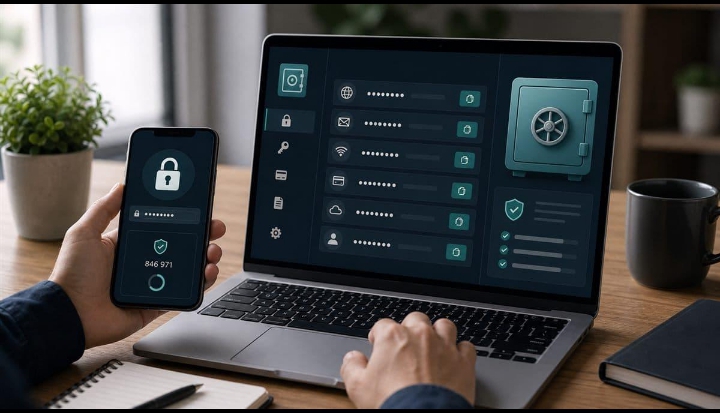
Passwords are an essential part of using the internet. Almost every online service requires an account, including email, social media, online banking, shopping platforms, websites, and business tools.
As the number of online accounts increases, remembering a different strong password for every account can become difficult. Many people solve this problem by using the same password across multiple websites or choosing passwords that are easy to remember. Unfortunately, these habits can increase security risks.
A password manager can make managing online passwords much easier. Instead of remembering dozens of passwords, you generally need to remember one strong master password while the password manager securely stores your other credentials.
Password managers can also help users generate stronger passwords, organize login information, and reduce the temptation to reuse passwords.
For anyone running an online business, using strong and unique passwords is particularly important. Your website, email account, analytics tools, social media accounts, affiliate platforms, and other business services may all contain valuable information.
In this complete guide, you’ll learn what password managers are, how they work, their benefits and limitations, important features to look for, and how beginners can choose and use one safely in 2026.
What Is a Password Manager?
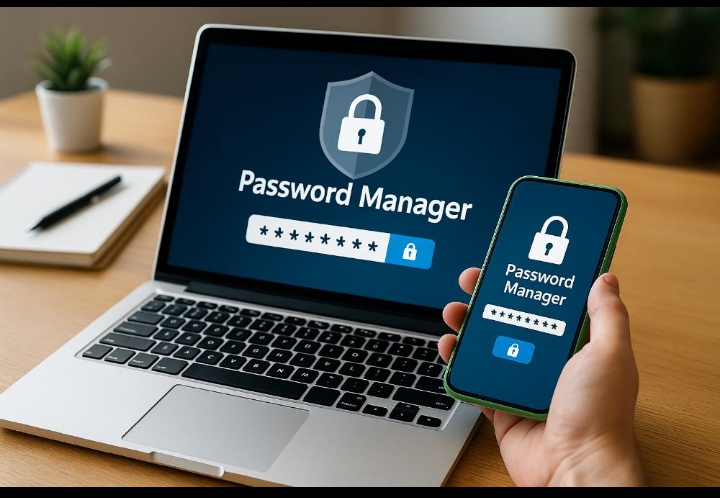
A password manager is a software application designed to securely store and manage passwords and other login information.
Instead of manually remembering every password, you can store your credentials inside the password manager.
Depending on the service, it may also allow you to store information such as:
- Website usernames
- Passwords
- Secure notes
- Credit card information
- Wi-Fi credentials
- Identity information
- Recovery information
The password manager protects this information using security mechanisms such as encryption.
Many password managers can also automatically fill login information when you visit a website or application.
This can make logging into your accounts faster while helping you avoid using the same password everywhere.
Why Are Password Managers Important?
The average internet user may have many online accounts.
You might have separate accounts for:
- WordPress
- Social media
- Online shopping
- Banking
- Hosting
- Affiliate networks
- Analytics
- Business tools
Creating and remembering a unique, strong password for every account can be difficult.
As a result, people often make common mistakes such as:
- Reusing passwords
- Using short passwords
- Using predictable passwords
- Writing passwords in insecure places
- Sharing passwords unnecessarily
- Keeping old passwords for too long
A password manager can help organize your credentials and make stronger password practices easier to maintain.
How Does a Password Manager Work?
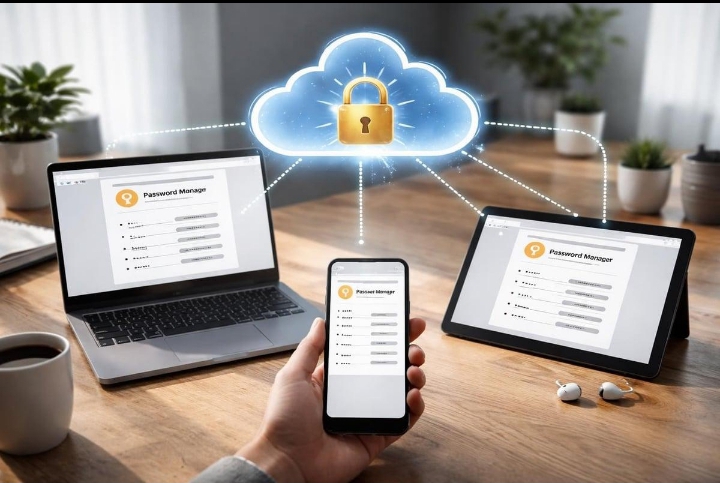
Most password managers follow a relatively simple concept.
First, you create an account and establish a strong master password.
Your stored credentials are then protected inside the password manager’s vault.
When you need to log into a website, the password manager can retrieve the relevant login information.
Depending on the product, you may be able to use it through:
- A web browser extension
- A desktop application
- A smartphone application
- A tablet
- Other supported devices
Many password managers can synchronize your encrypted vault across devices, allowing you to access your credentials when you switch between your phone and computer.
The exact security architecture differs between providers, so it’s important to review the security documentation and features of any password manager before trusting it with sensitive information.
Password Managers and Strong Passwords
One of the biggest advantages of password managers is that they can generate strong, unique passwords.
Instead of creating a password such as:
MyWebsite123
you can use a randomly generated password containing a combination of characters.
The exact requirements vary by website, but a password manager can help create passwords that are much harder to guess.
More importantly, you can use a different password for every account.
If one website experiences a credential leak, unique passwords can help prevent that password from being reused to access your other accounts.
The Problem With Password Reuse
Password reuse is one of the most common account-security mistakes.
Imagine that you use the same password for:
- Your email
- Your website
- Your social media account
- An online shopping account
If that password is exposed through a security incident involving one service, attackers may attempt to use the same credentials on other services.
This is sometimes called credential stuffing.
Using unique passwords for important accounts significantly reduces the potential impact of a compromised password.
Password Managers for Online Business Owners
Password security is especially important when you operate an online business.
You may have access to important accounts such as:
- Your website administration
- Hosting
- Domain registrar
- Google Search Console
- Analytics
- Social media
- Affiliate networks
- Payment platforms
- Business applications
Losing access to one of these accounts could cause significant problems.
A password manager can help you organize these credentials and create a more secure system for managing them.
For people building online businesses, password security should be considered part of basic business security rather than an optional extra.
Password Managers vs Saving Passwords in a Browser
Modern web browsers can also save and manage passwords.
This can be convenient, especially if you primarily use one browser and one ecosystem.
However, dedicated password managers may provide additional features such as:
- Cross-platform support
- Secure notes
- Password sharing
- Password auditing
- More advanced organization
- Identity storage
- Additional security controls
That doesn’t automatically mean a dedicated password manager is better for everyone.
The best option depends on your devices, security requirements, convenience, and the features you actually need.
Common Password Manager Features
Password managers can provide many different features.
Password Generation
A password generator can create strong, random passwords for new accounts.
Autofill
Autofill can automatically enter your username and password when signing into supported websites.
Password Vault
Your saved credentials are organized inside a central vault.
Synchronization
Some services allow your encrypted data to synchronize between supported devices.
Security Alerts
Certain password managers can identify weak, reused, or potentially compromised passwords.
Secure Notes
You may also be able to store sensitive information that doesn’t belong in a normal password field.
Haa, waa Part 2 ee article-ka “Password Managers: A Complete Guide for Beginners in 2026.” Waxaan sii wadayaa isla qaabkii professional-ka ahaa.
Password Managers: A Complete Guide for Beginners in 2026
Benefits of Using a Password Manager
Password managers can make everyday account management easier while encouraging better password security habits.
Here are some of the main benefits.
Create Strong and Unique Passwords
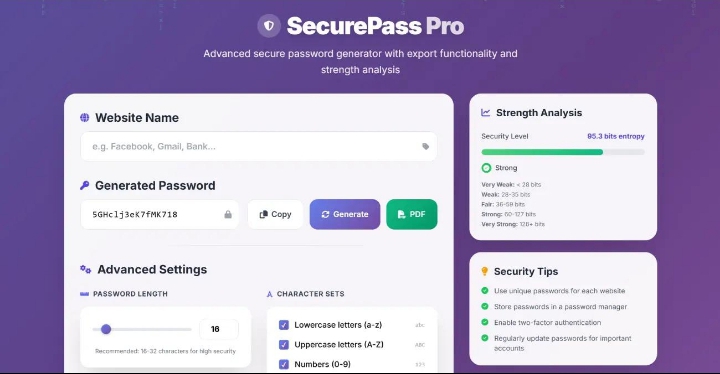
A password manager can generate random passwords for your accounts.
This means you don’t have to repeatedly invent passwords yourself.
Instead of using variations of the same password, you can create a completely different password for every website.
This is particularly useful for important accounts such as email, website administration, hosting, and financial services.
Reduce Password Reuse
One of the biggest security benefits is making unique passwords easier to maintain.
Without a password manager, remembering dozens of unique passwords can be difficult.
With a password manager, you don’t have to memorize every password individually.
You can therefore use stronger and more unique credentials without creating a huge memory burden.
Save Time
Typing usernames and passwords repeatedly can be inconvenient.
Autofill features can make logging into supported websites much faster.
This is particularly helpful if you manage many accounts for your online business.
Organize Your Accounts
A password vault allows you to keep your login credentials organized.
You can often categorize accounts based on their purpose.
For example:
- Personal accounts
- Business accounts
- Website accounts
- Social media
- Shopping
- Financial accounts
- Online tools
A well-organized vault makes it easier to find the information you need.
Access Your Credentials Across Devices
Many password managers support multiple devices.
Depending on the service, you may be able to access your passwords from:
- Smartphone
- Tablet
- Laptop
- Desktop computer
This can be useful if you regularly switch between devices.
However, you should understand how synchronization works and what security protections the provider uses.
Important Security Features to Look For
Not every password manager offers exactly the same level of functionality.
Before choosing one, look at its security architecture and available features.
Encryption
Encryption is one of the most important security concepts to understand.
Encryption converts readable information into a protected format so that unauthorized people cannot easily understand it.
A password manager should use strong encryption to protect sensitive information.
You should also investigate how the provider handles encryption and whether your vault is protected in a way that limits the provider’s ability to access your stored credentials.
Don’t choose a password manager solely because its website says it is “secure.”
Read its security documentation and understand what protections it actually provides.
Strong Master Password
Your master password protects access to your password vault.
This makes it extremely important.
Your master password should be:
- Long
- Unique
- Difficult to guess
- Not reused elsewhere
Avoid using personal information such as your name, birthday, phone number, or common phrases that others could easily guess.
A memorable passphrase made from several unrelated words can be easier to remember while still providing strong protection when implemented properly.
Two-Factor Authentication
Two-factor authentication, commonly called 2FA, adds another layer of protection to your account.
Instead of relying only on your password, you may also need another verification method.
Examples include:
- Authentication applications
- Security keys
- One-time verification codes
- Other supported authentication methods
If your password is ever exposed, an additional authentication factor can make unauthorized access more difficult.
Whenever a password manager supports strong multi-factor authentication, consider enabling it.
Types of Password Managers
Password managers can generally be divided into different categories depending on how they store and manage your encrypted information.
Cloud-Based Password Managers
Cloud-based password managers store encrypted vault data through an online service and can synchronize it across your devices.
This can make them very convenient.
You can often access your credentials from multiple devices without manually transferring your password database.
The main thing to investigate is how the provider protects your data and what happens if you lose access to your account.
Local or Offline Password Managers
Some password managers allow you to keep your encrypted password database locally rather than relying entirely on a cloud service.
This can provide greater control over where your data is stored.
However, it may also mean that you are responsible for:
- Backups
- Synchronization
- Device management
- Recovery
If you lose your password database without a backup, recovering your information may be difficult or impossible.
Free vs Paid Password Managers
Many password managers offer free plans, while others use subscriptions.
Free Password Managers
A free password manager can be a good starting point for someone who wants to learn how password management works.
Free plans may provide basic features such as:
- Password storage
- Password generation
- Autofill
- Basic security features
However, some free plans may limit the number of devices, storage capacity, sharing options, or advanced features.
Paid Password Managers
Paid plans can provide additional functionality.
Depending on the provider, premium features may include:
- More device support
- Secure sharing
- Advanced security reports
- Additional storage
- Emergency access
- Family features
- Priority support
Don’t assume that paying automatically makes a password manager more secure.
Security architecture, transparency, privacy practices, and the provider’s reputation are more important than price alone.
Password Manager Security and Your Master Password
A password manager can significantly improve your security, but it also creates an important responsibility.
Your master password becomes extremely valuable.
If someone gains access to your password manager account, they could potentially gain access to many of your stored credentials.
That’s why you should protect the master account carefully.
Use a strong, unique master password and enable available multi-factor authentication.
You should also make sure that your recovery options are secure and that you understand how account recovery works before you need it.
Common Mistakes Beginners Should Avoid
Using a Weak Master Password
A password manager cannot compensate for a poorly protected master account.
Avoid short or predictable master passwords.
Reusing the Master Password
Never use your password manager’s master password for another website.
Your master password should be completely unique.
Ignoring Two-Factor Authentication
If your password manager supports an appropriate additional authentication method, enabling it can provide an important extra layer of protection.
Storing Everything Without Organization
A password vault can become difficult to manage if you save hundreds of entries without a useful structure.
Use folders, categories, or labels when available.
Forgetting About Recovery
Before relying completely on a password manager, understand what happens if you forget your master password or lose access to your primary device.
Different services have different recovery mechanisms.
Never assume that customer support can simply give you your master password back.
Haa, waa Part 3 ee article-ka “Password Managers: A Complete Guide for Beginners in 2026.”
Password Managers: A Complete Guide for Beginners in 2026
How to Choose the Right Password Manager
Choosing a password manager is an important decision because you may use it to protect many of your online accounts.
Don’t choose one simply because it has a popular name or an attractive interface. Instead, compare its security, privacy, features, compatibility, and ease of use.
Check the Security Architecture
Before choosing a password manager, investigate how it protects your data.
Look for clear information about:
- Encryption
- Account security
- Multi-factor authentication
- Data protection
- Security audits
- Recovery options
- Device security
A trustworthy provider should explain its security practices clearly.
You don’t need to understand every technical detail, but you should be able to find enough information to make an informed decision.
Consider Privacy
Security and privacy are closely related but are not exactly the same thing.
A password manager may store sensitive information, so understand what information the provider collects and how it is handled.
Before signing up, review the provider’s privacy policy and learn:
- What data is collected
- How account information is used
- Whether information is shared with third parties
- Where data is stored
- What information may be retained
Choosing a service with transparent privacy practices can give you greater confidence in storing sensitive information.
Check Device Compatibility
Before selecting a password manager, make sure it works with the devices you actually use.
For example, you may need support for:
- Android
- iPhone
- Windows
- macOS
- Linux
- Web browsers
If you regularly switch between your smartphone and computer, cross-device support can be particularly useful.
Look at Browser Extensions
Browser extensions can make password managers much easier to use.
A good extension may allow you to:
- Autofill login details
- Save new passwords
- Generate passwords
- Search your vault
- Detect login forms
However, only install official extensions from trusted sources.
Avoid downloading password manager applications or browser extensions from unknown websites.
How to Set Up a Password Manager
Once you’ve chosen a password manager, the setup process is usually straightforward.
Step 1: Create Your Account
Download the official application or access the provider’s official website.
Create your account using an email address or another supported method.
Make sure you’re using the legitimate website or application.
Step 2: Create a Strong Master Password
Your master password is one of the most important credentials you will have.
Create one that is:
- Long
- Unique
- Difficult to guess
- Easy enough for you to remember
- Never reused elsewhere
Avoid using information that is publicly associated with you.
Step 3: Enable Multi-Factor Authentication
If available, enable multi-factor authentication.
This can provide additional protection if someone discovers your master password.
An authentication application or security key can provide stronger protection than relying only on a password.
Step 4: Install the Official Apps and Extensions
Install the password manager on the devices you regularly use.
If you use a browser extension, download it through the official browser extension store or the provider’s official instructions.
Avoid unofficial copies.
Step 5: Add Your Existing Passwords
You can begin adding your existing accounts to your vault.
Some password managers allow you to import passwords from browsers or other password managers.
If you use an import feature, make sure the process is performed through the official application.
How to Improve Your Existing Passwords
Adding old passwords to a password manager isn’t enough.
You should gradually replace weak or reused passwords with strong, unique ones.
Start with your most important accounts.
A good order might be:
- Primary email
- Website administration
- Domain and hosting
- Financial accounts
- Business accounts
- Social media
- Other important services
For each account, generate a unique password and save it in your password manager.
Protect Your Most Important Accounts First
Not every account has the same level of importance.
Your primary email account deserves special attention because it may be connected to password-reset systems for many other accounts.
If an attacker gains access to your email, they may be able to reset passwords for other services.
For this reason, secure your primary email with:
- A unique strong password
- Multi-factor authentication
- Updated recovery information
- A secure password manager
You should also protect your website administrator account, hosting account, domain registrar, and other accounts that control important parts of your online business.
Password Managers for Online Business
If you’re building an online business, a password manager can help you create a more organized security system.
For example, you may have accounts for:
- WordPress
- Hosting
- Domain registration
- Google Analytics
- Google Search Console
- Social media
- Affiliate networks
- Email marketing
- Design tools
- Business applications
Instead of storing these credentials in a notebook, text file, spreadsheet, or phone notes, you can organize them inside a secure password vault.
This can also make it easier to update passwords when necessary.
For someone building an online business, password management can become part of the same routine as SEO, content creation, and website maintenance.
How to Share Passwords Safely
Some password managers provide secure sharing features.
This can be useful if you work with:
- Employees
- Business partners
- Family members
- Freelancers
- Agencies
Instead of sending a password through ordinary text messages or email, a supported secure-sharing feature may provide a safer way to give someone access.
However, only share credentials when necessary.
Give people the minimum access they need to perform their responsibilities.
What If You Forget Your Master Password?
This is an important question to consider before choosing a password manager.
Different providers have different recovery systems.
Some may provide account recovery options, while others are designed so that the provider cannot recover your master password.
This is why you should understand the recovery process before storing all your credentials in a password manager.
Never assume that support staff can simply tell you your master password.
Should You Store Financial Information in a Password Manager?
Some password managers allow users to store payment cards and other sensitive information.
Whether you use this feature depends on your personal security preferences and the specific service you choose.
If you do store financial information, make sure:
- Your master password is strong
- Multi-factor authentication is enabled
- Your devices are protected
- Your password manager is updated
- You use only official applications
For highly sensitive information, always consider the security implications before storing it anywhere.
Common Mistakes When Choosing a Password Manager
Choosing Based Only on Price
A free option may be useful, but don’t make cost your only consideration.
Ignoring Security Documentation
A password manager is handling extremely sensitive information. Understand how it protects your vault.
Downloading Unofficial Software
Always obtain applications and browser extensions from trusted official sources.
Using a Weak Master Password
Your master password is the key to your vault, so protect it carefully.
Not Enabling Multi-Factor Authentication
If a strong additional authentication method is available, consider using it.
Storing Your Master Password in an Unsafe Place
Avoid keeping your master password in an easily accessible text file, screenshot, or ordinary notes application.
Haa, waa Part 4, qaybta ugu dambeysa. Waxaan ku daray FAQ-ga meel ku habboon, kadibna Final Verdict, Conclusion iyo SEO details.
Password Managers: A Complete Guide for Beginners in 2026
Best Practices for Using a Password Manager
Using a password manager is only the beginning. To get the most benefit from it, you should develop good security habits and regularly review your accounts.
Use a Unique Password for Every Important Account
Avoid using the same password across multiple websites.
Your email, website, hosting, domain, social media, and financial accounts should have separate passwords.
If one password is exposed, unique passwords can help prevent attackers from using it to access your other accounts.
Protect Your Master Password
Your master password should be treated differently from ordinary passwords.
Make it long, unique, and difficult for someone else to guess.
Never reuse it on another website.
You should also avoid sharing it with other people.
Enable Multi-Factor Authentication
Whenever your password manager and important online accounts support multi-factor authentication, consider enabling it.
Prioritize accounts such as:
- Primary email
- Website administration
- Hosting
- Domain registrar
- Financial services
- Social media
- Affiliate platforms
An additional authentication factor can provide another layer of protection if your password is compromised.
Keep Your Devices Secure
Your password manager is only as secure as the devices you use to access it.
Keep your:
- Smartphone
- Computer
- Tablet
updated with current security updates.
Use a screen lock, PIN, biometric authentication, or another appropriate device-security method.
Avoid leaving your computer or phone unlocked when you’re away from it.
Password Security Checklist
Use this simple checklist to improve your account security:
- Use a unique master password
- Create unique passwords for important accounts
- Use randomly generated passwords when appropriate
- Enable multi-factor authentication
- Keep your devices updated
- Use official password manager applications
- Keep your browser extensions updated
- Review weak or reused passwords
- Secure your primary email account
- Understand your account recovery options
- Maintain appropriate backups when your password manager requires them
You don’t have to complete everything in one day.
Start with your most important accounts and gradually improve the security of the rest.
Should You Change Your Passwords Regularly?
Changing passwords on a fixed schedule is not necessarily the most important security practice.
Using strong, unique passwords and changing them when there is a reason to do so is generally more useful.
You should consider changing a password when:
- You believe it has been exposed
- A service reports a security incident
- You accidentally shared it
- You reused it on multiple websites
- Someone who shouldn’t have access may know it
- You discover suspicious activity
If you have reused an old password across many accounts, prioritize replacing it with unique passwords.
Review Your Password Vault Regularly
Your password vault should not be something you create once and then forget about.
Every few months, review your stored accounts.
Look for:
- Weak passwords
- Reused passwords
- Old accounts
- Duplicate entries
- Unnecessary credentials
- Accounts that need stronger authentication
Delete accounts you no longer use when appropriate, and remove unnecessary information from your vault.
A regular review can help you maintain a cleaner and more secure system.
Password Managers and Two-Factor Authentication
Password managers and two-factor authentication serve different purposes, but they work well together.
A password manager helps you create and store strong passwords.
Two-factor authentication adds another verification step when you sign in.
For example:
Password → Authentication code or security key → Account access
This combination can provide stronger protection than relying on a password alone.
For your most important online business accounts, consider using both where supported.
What Should You Store in a Password Manager?
The exact information you store depends on the password manager and your personal preferences.
Common examples include:
- Website passwords
- Usernames
- Secure notes
- Wi-Fi credentials
- Software licenses
- Recovery information
- Payment information, if supported and appropriate
However, avoid storing information simply because you can.
Only keep sensitive information that you genuinely need and understand how to protect.
Password Managers for Beginners: A Simple Setup
If you’re completely new to password managers, don’t make the process complicated.
Start with these steps:
Step 1: Choose a Reputable Password Manager
Research its security practices, privacy policy, features, device support, and reputation.
Step 2: Create a Strong Master Password
Make it unique and difficult to guess.
Step 3: Enable Multi-Factor Authentication
Use an appropriate additional authentication method if available.
Step 4: Secure Your Email
Your primary email account is extremely important because it may be used to recover other accounts.
Step 5: Add Your Most Important Accounts
Start with your website, hosting, domain, email, financial accounts, and other critical services.
Step 6: Replace Reused Passwords
Gradually replace old and reused passwords with unique ones.
Step 7: Review Your Security
Periodically check your accounts and update your security practices.
This approach allows you to improve your security without becoming overwhelmed.
Frequently Asked Questions
Are Password Managers Safe?
A reputable password manager can provide strong protection for your credentials, but no technology is completely risk-free.
Security depends on the provider’s architecture, encryption, authentication, software security, and your own practices.
Using a strong master password, enabling multi-factor authentication, and keeping your devices secure can improve your protection.
Is It Better to Use a Password Manager or Remember Passwords?
For most people managing many online accounts, a password manager can make it much easier to use unique and strong passwords.
Trying to remember dozens of complex passwords often encourages password reuse or weaker passwords.
A password manager reduces that burden.
Can I Use a Password Manager on My Phone?
Yes. Many password managers provide mobile applications.
This can allow you to access your credentials when using your smartphone and, depending on the service, synchronize them with your other devices.
Always download the official application from a trusted app store or the provider’s official website.
What Happens If I Forget My Master Password?
It depends on the password manager.
Some services provide account recovery options, while others use security designs where the provider cannot recover your master password.
Before choosing a service, understand its recovery process and make sure you know what options are available.
Should I Use a Password Manager for My Online Business?
A password manager can be particularly useful for online business owners who manage many accounts.
For example, your website, hosting, domain, email, analytics, social media, and affiliate accounts may all require separate credentials.
Using unique passwords and organizing them securely can make account management easier and reduce the risks associated with password reuse.
Are Free Password Managers Good Enough?
A free password manager may be sufficient for some users.
However, compare the security architecture, available features, device support, privacy practices, and limitations before choosing one.
Don’t assume that a paid service is automatically more secure or that a free service is automatically unsafe.
Final Verdict
Password managers can be one of the most practical tools for improving online account security.
Instead of trying to remember dozens of passwords, you can use a password manager to generate, store, organize, and retrieve unique credentials.
This is especially useful for online business owners who may manage accounts for websites, hosting, domains, email, social media, analytics, affiliate networks, and other business tools.
However, a password manager isn’t a replacement for good security habits.
You should still use a strong and unique master password, enable multi-factor authentication where appropriate, keep your devices updated, and regularly review your accounts.
The most important principle is simple:
Use a unique, strong password for every important account and protect your password manager carefully.
When combined with good account-security practices, a password manager can make your digital life more organized and significantly reduce the problems associated with weak and reused passwords.
Conclusion
As more parts of our personal and professional lives move online, managing passwords safely has become increasingly important.
Trying to remember every password yourself can lead to predictable passwords, password reuse, and insecure storage methods.
A password manager provides a practical alternative by allowing you to securely organize your credentials and generate stronger passwords.
For beginners, the process doesn’t need to be complicated.
Choose a reputable password manager, create a strong master password, enable multi-factor authentication, and begin securing your most important accounts.
If you’re running an online business, prioritize your primary email, website, hosting, domain, financial accounts, social media, and other accounts that are critical to your business.
Good cybersecurity isn’t about making everything complicated. It’s about creating simple habits that consistently protect what matters.
A password manager can be an important part of that system.
SEO Title
Password Managers: A Complete Guide for Beginners in 2026
Meta Description
Learn how password managers work, their benefits, security features, and how beginners can safely manage strong passwords and protect online accounts in 2026.